
Courses.gg Help Center
The complete user guide for building communities, delivering courses, and supporting members.
What's New
See all updatesOctober 2, 2026
Find chapters and lessons at a glance
Review course navigationSeptember 28, 2026
Search the User Guide and find it from any page
Explore Community SettingsSeptember 25, 2026
Ownership transfers send confirmation emails
Review community ownership
New course guidance and community tools
These instructions are part of the main Courses.gg User Guide and cover the latest course guidance, membership, promotion, preview, conversation, enrollment, privacy, and course-management improvements.
Connect and choose an existing community
Install the SuperPowers plugin through ScalePlus ProMax, connect your account, and list the Courses.gg communities you can manage. Select the exact community and course before asking for changes. Use Codex or Claude Code beside the builder; there is no new native Courses.gg Agent panel. Create new communities in Courses.gg first. After a connection update, start a fresh tool session if Courses.gg actions are not listed.
Prepare a lesson package or draft
Ask for a lesson package using your video, transcript or notes, create a short-course draft in an existing community, or prepare a feed post. Review the content, learning outcome and destination. Generated content and draft preparation do not mean that anything was published or sent.
Save exactly the requested curriculum edits
Explicitly ask to add, edit or save a module, chapter, lesson or block to save it directly. Ask to draft, suggest or rewrite for a preview only. Edits to published courses are member-visible. Server-generated lesson previews use Scale Credits once per operation; ordinary reads, saves and content generated in your external agent have no added AI-generation charge. If captions are unavailable, supply a transcript or notes. Notes can support a summary but are never labelled a verbatim transcript.
Review the exact action
Before publishing, sending an announcement, changing pricing or creating a community event, review the proposal and approve the exact action. Check the destination, member audience, event date and time zone, and pricing amount, currency and billing terms. Changed proposals need a fresh review. Community events do not synchronize with CalendarBug through this integration.
Keep calendar and pricing changes focused
Manage individual native events; an existing CalendarBug booking URL may be the event link. Reprice existing paid monthly or yearly offers that use the built-in checkout, after reviewing old and new prices. Existing subscriptions, currency and access stay unchanged. External-provider prices, new plans, free-to-paid conversions and subscriber repricing are not supported. For announcements, all means all active community members; active means members active within the last 30 days.
Keep your work when a course changes elsewhere
If the course builder detects a newer saved version, it pauses autosave, Save and Publish. Your local edits stay on the page; queued saves do not overwrite the newer course. Choose Download local edits to keep a reference copy, then explicitly choose Reload saved course for review. Reloading replaces unsaved page content, so keep your backup first and compare it with the saved version before reapplying changes. The JSON download is not an automatic course import.
Add a summary or transcript section
In the course builder, select a lesson and use its plus button to add Lesson Summary or YouTube Transcript. Confirm the video or paste a transcript in the fallback field. Summary sections can also create a separate transcript block with student view and copy controls.
Include source timestamps
Check Put timestamps in the lesson summary or Put timestamps in the transcript to use times from video captions or a pasted timestamped transcript, such as [0:00] Introduction. Timestamps are not invented: if the source has no times, paste a timestamped transcript or turn this option off. Adding summary timestamps does not require creating a separate transcript block.
Leave instructions blank or guide the result
Optional instructions can guide focus and formatting, for example “Put a space between chapters” or “Focus on the actual content, not chit-chat.” Leave the field blank for the usual summary or the original transcript. Instructions apply to this generation only; review the result before sharing it with students.
Show communities on your member profile
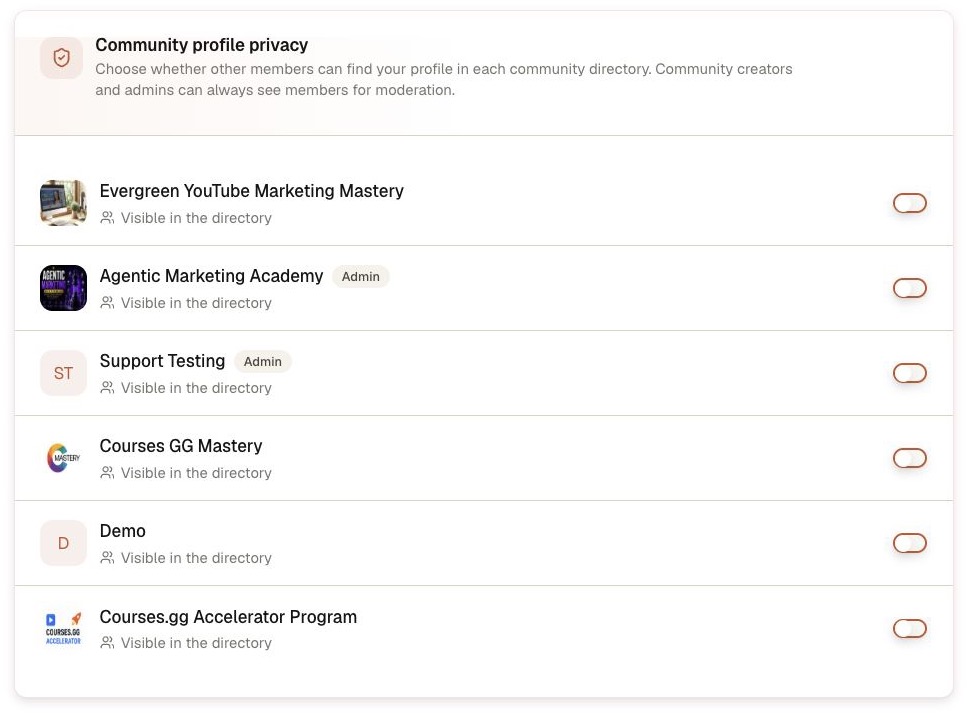
Member profiles include Owned Communities with links to public, listed communities. To show your other active memberships, open account Settings → Profile → Community profile privacy and enable Show my enrolled communities on profile. This starts off. Private or unlisted communities, private memberships and inactive memberships do not appear, even after you opt in.
Write separately for four placements
Community Settings → General → Community Copy & Descriptions has four fields: About Page Content for the main About tab; Public Landing Page Description for the introduction below the public cover banner; Sidebar Summary for the feed sidebar; and Card Tagline for directory cards and search previews. Each field has a placement preview. Saving one does not overwrite the others. A blank landing description falls back to About content. Blank sidebar and card fields use a shortened original community description, or About content if no original description exists. Sidebar summaries allow 500 characters; card taglines allow 280.
Control search and shared-link previews
Open Community Settings → SEO & Social to customize the browser and search title, search description, social title, social description, and social preview image. Click or drag into the image area to upload a JPG, PNG, WebP, or GIF; a 1200 × 630 image works best. You can replace or remove the image from the same control. The live previews show the effective values before you save. Leave fields blank to use the community name, original description, and wide community banner automatically.
Keep General settings focused
Choose Minimize beside Basic Information or Post Categories when you want to reach the settings below them faster. Choose Expand to continue editing; minimizing Basic Information keeps its current form values. The unused Public Page Buttons card no longer appears in Community Settings → General. Links saved there previously are not deleted and continue to appear on public community pages.
Choose your weekly delivery rhythm
In Community Settings → Notifications, set the allowed email frequencies, then choose Weekly Summary Email Delivery. Fixed Day lets you select a weekday, time and timezone. Member Join-Date Relative sends weekly summaries at day 7, 14, 21 and onward from each member’s community join timestamp. Opting in later starts at the next interval, without sending missed editions. New communities default to Sunday at 9:00 AM UTC; existing communities keep their previous schedule until changed. Fixed schedules follow daylight saving; a skipped clock time moves to the next valid local minute. Members still choose Weekly, Daily or Off in their notification preferences.
Find setup before moderation
Community Settings opens on General. Rules, Governance, Reports and Requests are grouped together after the main setup tabs. Notifications contains your email summary controls.
Images, files and reactions in direct messages
The message box grows as you type a longer draft, and you can drag it taller on desktop. Press Enter to send or Shift+Enter for a new line. Paste a screenshot into the message box or choose the paperclip. Attach up to five files with a combined limit of 25 MB, including JPG, PNG, WebP, GIF, PDF, ZIP, Word and text documents. Images appear in the conversation; file cards provide downloads. Attachments are available only to the conversation participants. Use the smile button to add or remove a reaction; it appears on hover on desktop and stays available on mobile.
Activity, local time and message emails
The chat header and member profile show Online, Last online with a relative time, or Offline when no timestamp is available. Your timezone is initially detected from your browser and can be changed in Settings → Notifications. Online reflects a recently used, visible Courses.gg tab; it is not a promise of an immediate response. Message emails are suppressed while you are active. While you are away, messages are grouped by conversation after a short delay, with a 15-, 30- or 60-minute cooldown. Reading the thread resets the cooldown.
Share a comment or report a concern
Open the three-dot menu on a post or comment and choose Copy Link. Comment links open the full thread and highlight the selected comment; recipients still need the appropriate community and plan access. Members can choose Report Post or Report Comment, select a reason and add details. Creators and moderators receive an alert and can review the Reports queue. Marking a report resolved or dismissed does not delete the content.
Choose an email summary
In Settings → Notifications, select a community, then choose Weekly Summary, Daily Digest or Off. Summaries are off until you opt in. They highlight accessible popular discussions, comments and announcements, and skip empty editions. Community Settings → Notifications lets creators choose allowed frequencies and a fixed-day or join-relative weekly schedule. Your notification preferences show the community’s schedule and your next scheduled summary.
React without cluttering the message
The smile button floats beside the bubble: left of messages you send and right of messages you receive. It appears on hover or keyboard focus and stays available on mobile. Search the expanded emoji picker or browse its categories. Applied reactions sit outside the bubble, and clicking your reaction again removes it.
Lesson files members read in place
Open a PDF, audio, or video block and turn on Keep this file inside the lesson for a PDF, MP3, or MP4. Members then use the built-in reader or player. Download and Open PDF stay hidden for that file. Leave the option off to keep today's download buttons. Editable workbooks and other file types can stay downloadable on their own blocks.
AI Content in a lesson
Choose AI Content from Add Content or the little plus between blocks. Add web pages, YouTube transcripts, pasted text, text or Markdown files (up to 5 MB), or research a topic. Wait until every source is ready, then choose Explanation, Checklist, FAQ or Reflection questions. Set the audience experience, language and depth, and optionally add instructions. Preview and edit the title and content, then choose Insert content to add it at the selected position. PDF and Word files are not supported.
Generate one module
Choose Generate Module with AI beside the module controls (AI Module in the compact outline). Use the same source and configuration steps, choosing 1–10 lessons; the default is three. Edit the module title, description, lesson titles and written content in the preview. Insert module appends exactly one module without replacing existing material. These tools also work before you create a course; draft additions become permanent when you create it.
AI Quiz uses your saved lesson
Create or save your course first, then choose AI Quiz from a lesson's add-content menu. The builder saves a quiz block and opens the grounded AI question workbench, which uses the lesson content and available transcripts. Generate candidates, review and select questions, then add them. A new quiz starts with a 70% passing score, which you can change in Quiz Settings. If saving fails, stay in the builder and save or retry; no questions are added automatically. Ordinary Quiz blocks remain available in unsaved drafts.
Keep control of your draft
Generation does not change the curriculum until you insert the preview. Back lets you change settings or sources; Return to preview keeps your last successful result available if regeneration fails. Remove failed or empty sources before generating. If sources exceed the context budget, a warning tells you that some material may be shortened or skipped. Inserted content follows the builder's normal autosave behavior for saved courses.
Choose what the conversation should use
Open Chat with this course from the course overview, or choose the lesson chat action while studying. The chat starts with the current lesson when you are inside one and with the entire course from the overview. You can switch between Entire course, This module, This chapter, and This lesson at any time.
Answers use the available course text, favoring the shorter lesson summary before a full transcript. If a large selection needs extra room, Courses.gg keeps your question ready while you choose a narrower section or create a condensed version.
Make more room for the lesson
Use the Collapse chat banner arrow beside the lesson chat button to hide the larger introduction. A compact Chat with this lesson button stays available. Your browser remembers this choice between lessons and visits. Use Expand chat banner to bring the introduction back.
On a phone, the question box stays at the bottom of the chat, including when the keyboard is open. It shows several lines of your question and grows as you type. Lesson, chapter, and module choices stay compact so they do not cover the box.
Read and reuse the answer
- Headings, lists, emphasis, links, and code are formatted for easy reading inside every AI answer.
- Use the small Copy icon beneath any question or answer to place the complete message on your clipboard. A checkmark confirms the copy.
- Copying an AI answer preserves its Markdown formatting so headings and lists can be reused in compatible notes and documents.
Launch plans when you are ready
New plans start as Draft. In Community Settings → Plans, choose Published to offer a plan on the community pricing list, Unlisted to keep it off that list while its plan page link and checkout stay open, or Hidden to close the offer and its direct link. Publish the promotional page before sharing an unlisted link. Content assigned only to draft or hidden plans is hidden. Changing visibility does not cancel billing or remove a separate course purchase or direct grant.
You can walk through a plan before offering it. Open the View as Member menu in the community header and pick any plan in the community, including one that is Hidden or Draft. Courses assigned to the selected plan appear in the preview even when they are still unpublished. Hidden plans are listed as Hidden · plan name and an amber preview banner stays visible until you choose Exit preview, so you always know you are not seeing the live member view.
Courses in published plans remain visible to members who need to upgrade. The Upgrade to unlock button opens the creator's upgrade link or available plans. Your current plan determines access; an older subscription does not restore a previous tier.
In Classroom and Course Library, managers see a plan tag on each course. One plan name means the course belongs to a single offer. A count such as 2 plans plus the plan names means it is shared. Courses with no assignment show No plan, so you do not need to open Settings → Plans to check.
Preview the welcome experience
Use Preview as Member in Membership Questions and Rules to check the saved member-facing content without submitting a join request. Format your welcome message in Onboarding with links, lists, and emphasis.
Pending applicants see their request on the dashboard and My Communities. Community admins receive join-request alerts according to their preferences. Approval activates membership, adds the configured welcome message to the member's conversation, and sends a confirmation email.
Keep navigation and community details clear
The Courses and Calendar pills open their dedicated views. Click the community logo to return to All Posts. Expand Drafts & Scheduled when needed; an empty panel starts collapsed.
The sidebar uses your Sidebar Summary or a shortened fallback. The About page uses the separate, formatted About Page Content field. Public attribution and the community sidebar include the current owner and active admins; after an ownership transfer, the Owner badge follows the new owner automatically and remains visible only to community administrators.
Transfer ownership from Community Settings → Governance. The new owner must already be an admin or moderator, and you stay an admin. When the transfer is finished, both of you get a confirmation email. Yours names the new owner and the date and time, and asks you to contact support if you did not make the change. Theirs names you and links to community settings.
Enable Member Map under Governance. Members opt in through Profile → Edit → Location Settings. Markers show broad areas rather than exact coordinates, and location sharing can be turned off at any time.
Choose which alerts you receive
Open Settings → Notifications in either Creator or Student mode. Set Email and In-app options for discussions, replies, likes, events, course releases, Direct Messages, Mentions, and Admin Announcements. Select a community for its own preferences. New accounts start with notifications and Marketing Emails enabled; existing opt-outs are preserved.
Community post, reply, mention and comment-activity emails include the relevant conversation excerpt and a direct button back to the post. Access is checked again before delivery, so hidden or removed discussions are not included. These links open centralized community conversations rather than adding comments beneath course lessons.
Browser alerts require permission and an open Courses.gg tab. They are not background mobile push notifications. In-app alerts remain available in the notification bell.
Plans, trials, and access
- Open Community Settings → Plans to create up to five monthly or yearly membership plans with benefits, included courses, free trials, optional trial limits, grandfathered pricing, and external upgrade links. Classroom and Course Library show those plan names as tags so you can tell a single-plan course from a multi-plan course without leaving the course list.
- Use New member access above the plan list to choose a default free plan or Community only. Community-only members can participate in the community but receive no courses or other plan benefits.
- In Community Settings → Post Categories, choose one or several active plans for a category. When creating a discussion, use Visible to the same way. Members outside those plans see a clear locked upgrade state, and replies inherit the discussion's access. If the category list makes General settings too long, choose Minimizein its header and expand it again whenever you need to edit categories.
- Members can choose Upgrade membership, compare available plans, and continue through the built-in checkout or the creator's upgrade page.
- Each tier has a Promotional page tab for its shareable URL, banner, video, headline, description, benefits, checkout button, search title and description, and social-sharing title, description, and image. Publish the page when it is ready to share.
- Use View as Member beside Admin in the community header to test the public visitor experience or an active member on any plan. The persistent preview banner confirms which permissions, channels, feed posts, events, and courses are being simulated.
Broadcasts and conversations
- From the member manager, choose Broadcast email to send now or schedule a message for everyone, active members, or one plan. Recent broadcasts show delivery results.
- Select members in the member manager, open Bulk Actions → Change plan, and choose the target tier. The confirmation names the destination and member count, then updates everyone together without changing external billing.
- Use @ Mention to notify another member, Emoji to add a quick reaction, and GIF to search GIPHY or paste a direct GIF URL in posts and replies. Reply boxes grow as you type longer text so the complete draft stays visible before you post it.
- Member names and avatars open profiles with bios and recent activity, while feed cards preview the first replies.
- Use Like and Reply beneath comments. Replies can be continued one more level, and the action menu keeps edit or delete controls beside the conversation they affect.
- Choose Message on a member profile to open or create the correct direct conversation. New messages, unread totals, and read status update automatically.
- Open a published post's edit menu to change its category or plan visibility. Creators and moderators can also enable Hide from All feed so a post stays discoverable inside its selected category without appearing in All.
Community calendar
Open a community's Calendar tab and choose Month or Week. Use the arrows to move through time, choose Today to return to the current date, and select an event to see its host, meeting link, attendance status, and registration options. Times follow the timezone saved in your profile. The nearest event due in the next two weeks also appears at the top of the feed in your local time. Dismiss it when it is no longer useful.
About text, promotional links, and brand images
On the community About page, edit About this community for the detailed introduction, then add and reorder up to eight labeled promotional links. The feed sidebar uses the separate Sidebar Summary from General settings, with a shortened fallback when blank. In Community Settings → General, upload a square Community Icon (recommended 512 x 512px) and a separate wide Community Banner (recommended 1200 x 630px). Compact Saved Items and creator lists use the square icon; wide banners remain available for course and community presentation.
In Edit course, choose a community under Attach to Community and save. That community stays selected when you reopen the course, and the course appears in its classroom. Choose None to remove that link. Saving other course details while leaving the community as it is does not require you to be an admin of that community. Choosing a different community does.
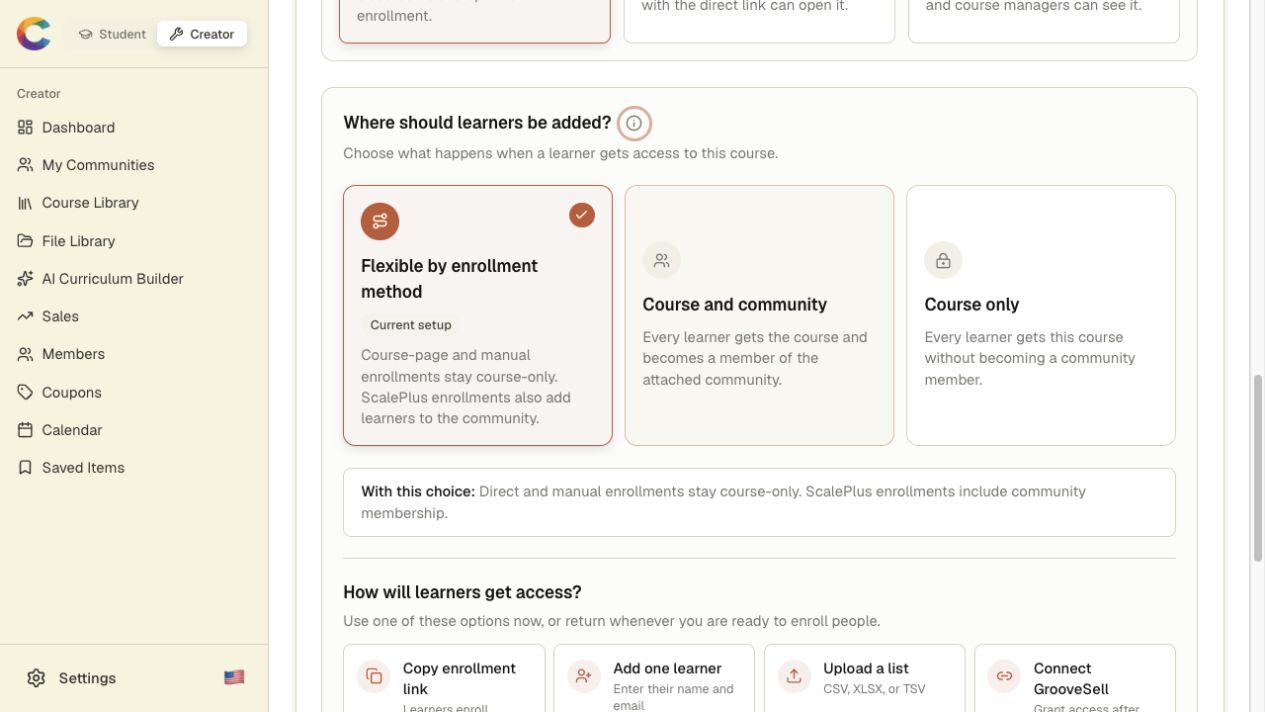
In the same editor, choose Flexible by enrollment method, Course and community, or Course only. Save the course before adding learners so new enrollments use that destination.
Give access with a self-enrollment link, add one learner by name and email, upload a CSV or Excel list, or connect a GrooveSell product. Private courses can still accept direct enrollments.
Expand Course access webhook to connect any external checkout or automation. Copy the course's secure URL, send a JSON event with grant_access or revoke_access, and review recent delivery status, payloads, timestamps, errors, and retries in the same panel. Rotating the URL immediately disables the previous one.
Zapier can now select a specific standalone course for access-granted and access-revoked triggers, and it can grant or revoke course access as an action. Zapier revocations never remove access that was granted manually, through a purchase, or from another entitlement source.
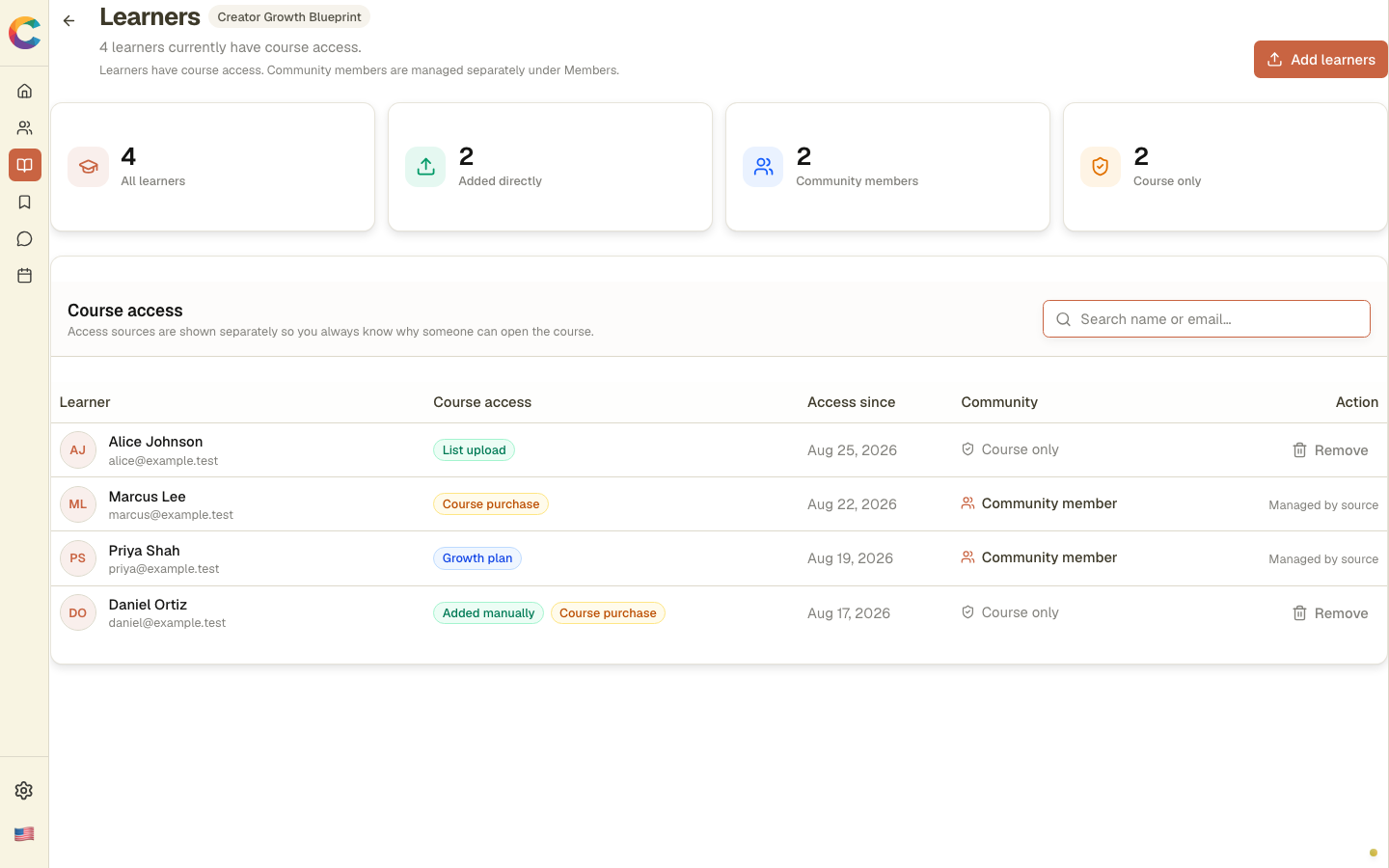
Manage learners
Choose Manage learners to see who can study the course, whether each person is also a community member, when access started, and every source currently granting access. Direct or uploaded access can be removed without removing community membership. Purchase, plan, complimentary, and community access must be changed at its source.
In the student view, the left column is dedicated to course search and lesson navigation. The course name, progress, and lesson information appear above the content on the right, with both columns beginning at the top of the page. On desktop, the curriculum outline scrolls with the page. Short lessons stay alongside the outline; longer lessons scroll so every block remains reachable. Use Jump to module to explore a section, Selected lesson to return to its place in the outline, and Lesson start to see the beginning of the content again. Expanding or collapsing a section keeps your current lesson open. On mobile, students open the curriculum from the menu.
Chapters now use a larger, higher-contrast section row so they are easy to spot while scanning a long course. Lessons sit directly beneath their chapter with stronger text and less extra indentation; the lesson icon supplies the visual step-in. The same hierarchy is used on the course page and in both course-builder previews.
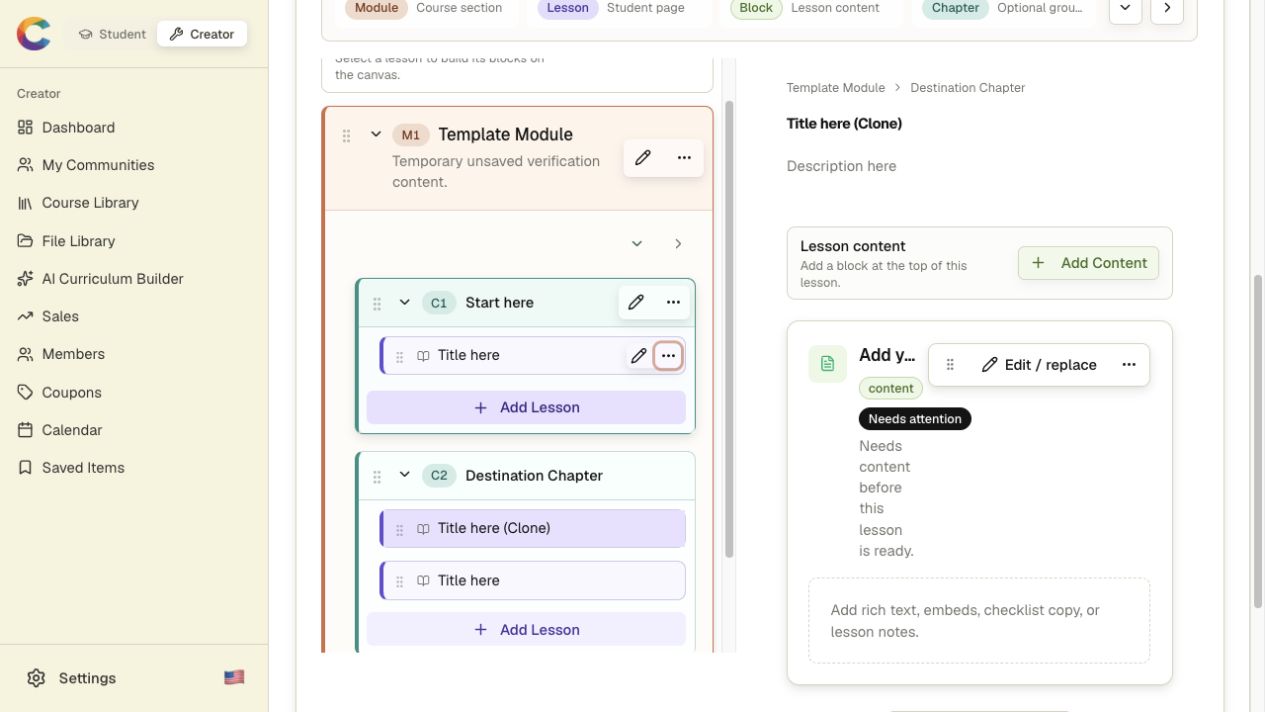
In the builder, choose Find lesson to search module, chapter, or lesson titles. For a long-distance move, open a lesson's three-dot menu and choose Move lesson. Select the destination chapter and choose a lesson to place it before, or place it at the end. Its content moves with it, and the new position saves automatically.
Open Availability on a module or lesson to choose when it opens, who receives it, and what members see before it opens. Show an upgrade offer and the selected upgrade plan stay saved after you close the panel, including when Who gets this? is set to Selected plans. Saving again without changes keeps each plan's own schedule.
Choose Clone lesson from a lesson's three-dot menu to place the new copy at the top of that chapter. The original lesson stays in its current sequence, and the copy includes all of the original lesson's content.
Inside a lesson, use the always-visible pencil icon to edit or replace a content section, or use its up and down arrows to move it one position at a time. The three-dot menu remains available for duplicate and delete actions, and the drag handle can still be used for larger moves.
In Edit course → Curriculum, expand the source and destination chapters. Drag the lesson by its handle, place it above, below, or between the destination lessons, then release when the placeholder is correct. Empty chapters display Drop lesson here, and Courses.gg confirms when the new position is saved.
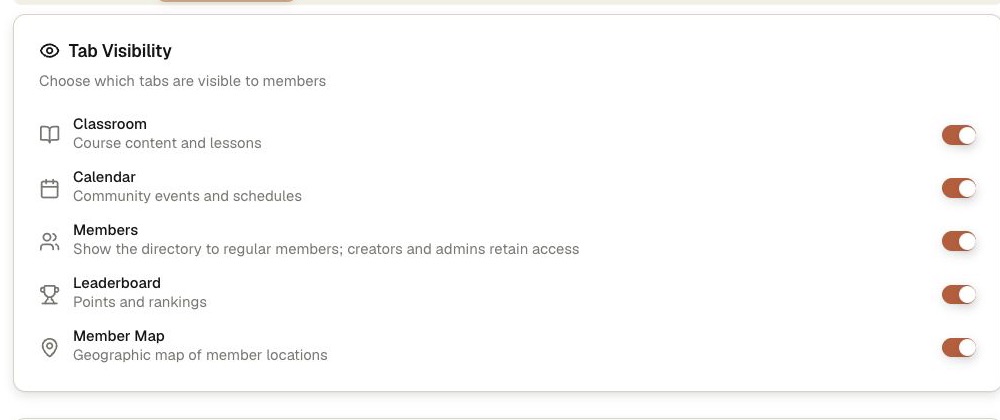
Creators and admins can open Community Settings → Governance and turn off Members to hide the directory from regular members. Individual members can open Settings → Profile and enable privacy separately for each community. Admins retain visibility for moderation, and privacy never removes course or community access.
- If YouTube asks you to sign in before a lesson or replay plays, Sign In and Learn More in the player now open YouTube instead of sitting on a black screen.
- From the Members tab, Send password reset link emails the member a reset link, including people who signed up with Scale Plus. If a member has no email, the page says so.
- Community landing pages fit phones, tablets, and desktops without a repeated banner; creator and student labels, pricing cleanup, and member activity sorting are corrected.
- Groove imports normalize video embeds, copy eligible direct video files to durable Courses.gg storage, identify expiring or inaccessible media, and offer a Repair import action.
- Uploaded PDFs display inside lessons for learners and creators, with Open PDF still available for a separate browser tab.
- Community posts preserve paragraphs and line breaks, while Markdown links and pasted web addresses display as safe, clickable links.
- Square community icons and wide 1200 x 630 banners are stored and displayed separately. Compact lists use the icon, while course rows let you hover, focus, or tap to inspect the complete banner without destructive cropping.
- Access webhook addresses display as copyable URLs; messaging keeps failed text available for retry and feed replies can be liked or answered inline.
- Scale.gg fulfillment lists your communities and plans, including when the email on that account differs from your Courses.gg sign-in email. A completed purchase grants the selected community and plan, and a new customer gets an email to set a password.
- Event Webhooks now send after a real signup, course enrollment, or payment—not only when you click Test. The delivery appears in View Logs, and Edit opens the existing webhook instead of a blank create form.
- Courses assigned to any active plan follow the member's latest active tier across listing, opening, upgrades, downgrades, and free tiers. Older plan records do not keep previous tiers open; direct grants, complimentary access, and purchases remain valid independent access sources.
- Plan promotional pages save every field consistently, profile-to-message routing shows clear mobile progress or retry states, and the labeled View as Member control stays in the normal creator action row with the active preview state visible.
Custom domains
Every creator can view Custom Domains in Community Settings. Connecting a root domain or subdomain requires an active Scale Plus Pro Max subscription or a Courses.gg Pro plan. Free accounts do not include it. Only the community owner can connect a domain or edit the branded sign-in page; other community admins see this explained in the tab.
- Open Custom Domains in Community Settings and expand the setup steps. Use the root domain only if it is not already hosting another site; otherwise choose an unused subdomain such as members.example.com.
- Choose a domain in Domain Manager, select Courses.gg and this community, then accept the marketplace delisting checkbox before connecting. Your existing root site and DNS assignments are not replaced automatically.
- Return to Custom Domains to check readiness. DNS and SSL setup may take time; do not share the member links until the domain shows Ready.
- Once ready, share the sign-in, free sign-up, and password reset links shown here. New visitors can create a free account on that sign-up page and are signed in on your domain. Customize the sign-in heading, header, footer, and accent color; your community icon is used as the logo. On the branded free sign-up page, the Terms and Privacy Policy links open the Courses.gg policies on courses.gg in a new tab.
- Connecting removes the community from Courses.gg marketplace discovery until you disconnect it in Domain Manager. Students remain in your branded community and can reach its courses there.
What is courses.gg?
courses.gg is your all-in-one platform for building thriving learning communities. Whether you're an educator, coach, or content creator, courses.gg gives you everything you need to engage your audience, deliver structured courses, and monetize your expertise—all in one place.
Think of it as the perfect blend of a community platform and a learning management system. Your members get a space to connect and learn together, while you get powerful tools to create, manage, and grow your business.
Key Features:
- Community HubCreate engaging communities where members can post, comment, chat, and connect. Build real relationships with your audience.
- Course DeliveryDeliver structured courses with modules, lessons, quizzes, and certificates. Track student progress and celebrate completions.
- Built-in PaymentsAccept payments with Stripe and PayPal. Offer one-time purchases, subscriptions, and discount coupons.
- GamificationKeep members engaged with points, leaderboards, and achievement badges. Turn learning into a rewarding experience.
- Analytics & InsightsUnderstand your community with detailed analytics on engagement, revenue, and member activity.